Text Selection
Highlighted text in any Windows application is a valid input for dIKta.me. Select some text, press a hotkey, and the selection becomes raw material for an AI pipeline — rewritten, answered, translated, or read aloud.
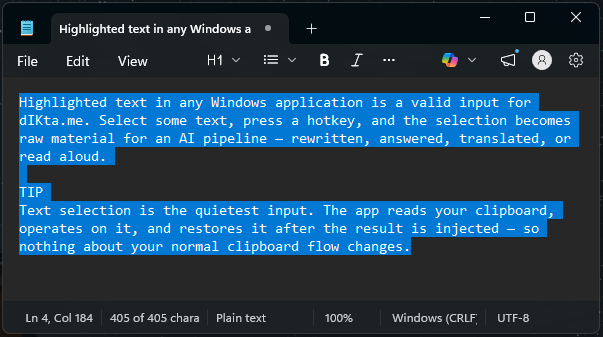
Text selection is the quietest input. The app reads your clipboard, operates on it, and restores it after the result is injected — so nothing about your normal clipboard flow changes.
How to capture a text selection
Select text in any app (Word, Slack, VS Code, a web browser — anything), then press one of the selection-aware hotkeys:
| Hotkey | Action | What happens |
|---|---|---|
Ctrl+Alt+R | Refine | Rewrites the selection in place — cleanup, reformatting, style |
Ctrl+Alt+A | Ask | Uses the selection as context for a spoken question |
Ctrl+Alt+T | Translate | Translates the selection to your target language |
Ctrl+Alt+F | Read Selection | Reads the selected text aloud via TTS |
All hotkeys are rebindable in Settings → Keyboard Shortcuts.
How it works under the hood
- You press a selection hotkey.
- dIKta.me briefly copies your selection to the clipboard (your existing clipboard contents are saved).
- The selected text flows through the AI pipeline you chose.
- The result is injected back where your cursor is, your original clipboard is restored.
Because dIKta.me uses the standard Windows clipboard, text selection works in every app that supports copy/paste — no plugins, no integrations.
Refine variants
Refine is the main output for text selection, and it comes in two flavors:
- Refine (Auto) — automatic style/grammar cleanup, no voice instruction needed.
- Refine (Verbal) — you speak an instruction ("make this more formal", "turn this into a bulleted list") and the AI applies it to the selection.
Configure both in Settings → Pipelines.
Local vs. cloud
Text-selection outputs run on the same LLM you configure globally (or per preset). Choose Gemini / OpenAI / Anthropic / OpenRouter in the cloud, or Ollama with any compatible model locally. See Settings → AI Engine.