Chat Rápido (Quick Chat)
Entradas: Voz, texto, imágenes desde Pantalla · Atajo: Ctrl+Alt+C
Aunque dIKta.me está construido para inyectar texto en tus aplicaciones activas, a veces solo necesitas tener una conversación rápida con tu asistente de IA sin escribir en un documento.
Aquí es donde entra la superposición de Chat Rápido. Se comporta como una interfaz de chat LLM estándar (como ChatGPT o Claude) que puedes invocar en cualquier lugar y en cualquier momento.
Acceder al Chat Rápido
Para abrir la ventana de Chat Rápido, presiona la tecla de acceso rápido global:
Ctrl + Alt + C (Predeterminado)
Esto abrirá una ventana superpuesta que se mantiene por encima de tu trabajo. La ventana de Chat permite conversaciones de múltiples turnos, lo que significa que recuerda el contexto de tus mensajes anteriores durante esa sesión.
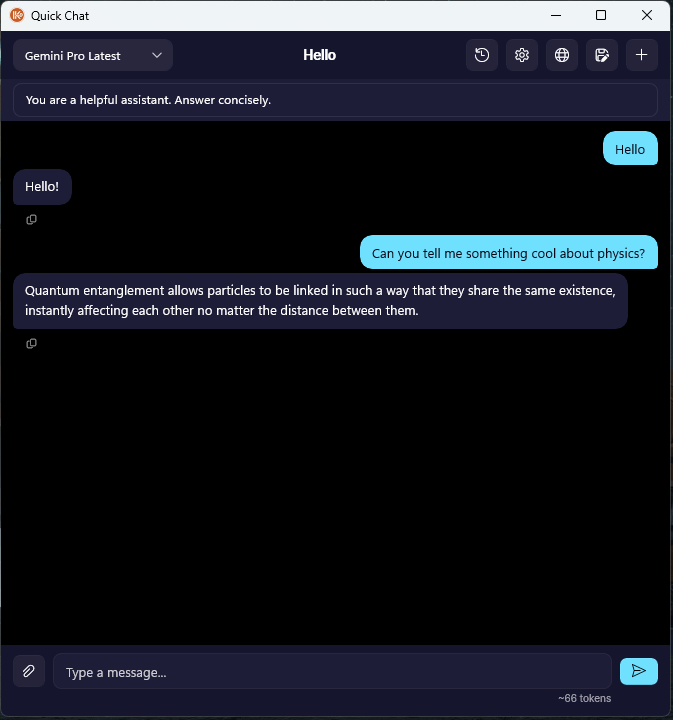
Editar el prompt del sistema a mitad de conversación
El icono de engranaje en la barra superior te permite editar el prompt del sistema del asistente en cualquier momento — incluso con una conversación en curso. El siguiente turno respeta inmediatamente la nueva instrucción sin perder el contexto previo.
Ver la edición del prompt del sistema en acción
En el ejemplo de abajo, el prompt inicial es "You are a helpful assistant. Answer concisely." Los dos primeros turnos responden en inglés. Luego el usuario edita el prompt del sistema para añadir "In french", hace una pregunta de seguimiento, y la siguiente respuesta cambia a francés — sin reiniciar el historial de la conversación.
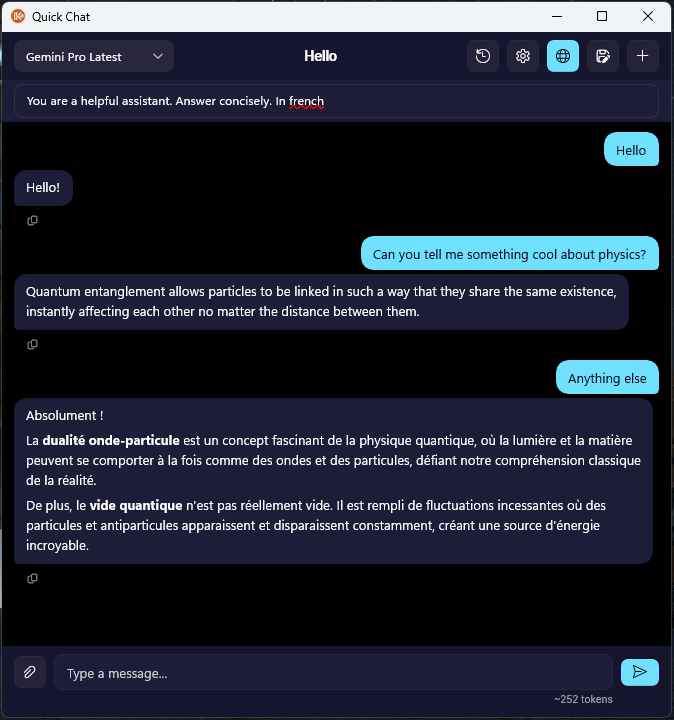
El icono de globo resaltado en la misma captura es el toggle de Búsqueda Web (solo modelos Gemini) — una función independiente que permite al modelo anclar respuestas con resultados web en vivo.
Entrada de Voz o Texto
Puedes interactuar con el Chat Rápido de dos maneras:
- Escribiendo (Typing): Simplemente escribe tu pregunta en el cuadro de entrada inferior y presiona Enter.
- Hablando (Speaking): Presiona el botón del Micrófono para dictar tu pregunta.
A diferencia de la canalización principal de Dictado, la entrada de voz en el Chat Rápido utiliza **Raw STT (Voz a Texto Crudo)**. Esto significa que tu pregunta hablada se transcribe directamente sin una capa inicial de formato LLM, asegurando que tu solicitud se envíe al Asistente de Chat exactamente como la dijiste sin ningún retraso.
Adjuntos de Contexto del Portapapeles
Una de las funciones más poderosas del Chat Rápido son los Adjuntos del Portapapeles (Clipboard Attachments).
Si tienes un bloque de código, un correo electrónico largo, o un fragmento de texto que deseas que la IA analice, simplemente cópialo a tu portapapeles (Ctrl + C) y haz clic en el botón Attach Clipboard (Adjuntar Portapapeles) en el área de entrada del Chat Rápido.
Cuando envíes tu próximo mensaje, el contenido de tu portapapeles se añadirá silenciosamente al principio de tu instrucción.
Ejemplo de flujo de trabajo:
- Resalta un mensaje de error confuso en tu terminal y presiona
Ctrl+C. - Presiona
Ctrl+Alt+Cpara abrir el Chat Rápido. - Haz clic en "Attach Clipboard".
- Escribe o di: "¿Qué significa este error?"
- El Asistente lee tu portapapeles y responde.
Selección de Modelos e Instrucciones del Sistema
A diferencia de los modos de dictado estándar que están estrictamente vinculados a los perfiles de tu Panel de Control, la ventana de Chat Rápido te permite cambiar su comportamiento de forma dinámica.
En la parte superior de la ventana de Chat Rápido, puedes:
- Seleccionar un Modelo (Select a Model): Elige cualquier LLM disponible de tus cuentas configuradas o claves de API (ej., GPT-4o, Claude 3.5 Sonnet, un modelo local de Ollama).
- Alternar Instrucción del Sistema (Toggle System Prompt): Expande la sección superior para modificar el System Prompt para la conversación actual (ej., cámbialo de "Eres un asistente útil" a "Eres un Desarrollador C# Senior").
- Alternar Búsqueda Web (Toggle Web Search): Si estás usando un modelo Gemini, puedes habilitar Google Search Grounding para permitir que el modelo busque respuestas actualizadas en la web al instante.
Historial de Conversación
dIKta.me gestiona automáticamente tu historial de conversación.
- Títulos Automáticos (Auto-Titling): Después de tu segundo mensaje en un nuevo chat, dIKta.me usará una pequeña tarea de IA en segundo plano para generar automáticamente un título de 3 a 5 palabras para la conversación.
- Truncamiento de Contexto (Context Truncation): Si una conversación se prolonga por mucho tiempo, el Chat Rápido elimina automáticamente los mensajes más antiguos para garantizar que no excedas los límites de tokens del modelo.
- Persistencia (Persistence): Todos los chats se guardan localmente en tu máquina. Puedes hacer clic en el botón de Historial (History) para recargar, revisar o eliminar conversaciones pasadas.