Primeros Pasos
¡Bienvenido! Vamos a poner dIKta.me en marcha. No hace falta programar ni instalaciones complejas.
1. Instalación
- Descarga: Obtén el último
DiktaMe_Setup.exedesde la página de Releases. - Ejecuta: Doble clic en el instalador.
Aviso de Windows SmartScreen la primera vez: haz clic en "Más información" → "Ejecutar de todas formas".
- Listo: dIKta.me se inicia y se acomoda en tu bandeja del sistema.
2. Asistente de Primera Ejecución
La primera vez que abras dIKta.me, un breve asistente te guía por la configuración.
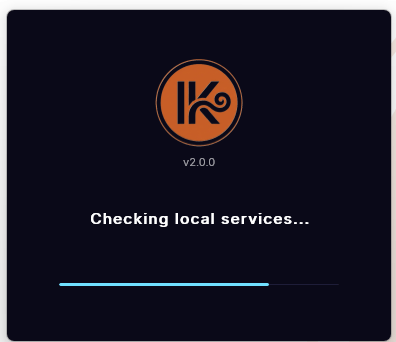
Carga
Una pantalla de bienvenida realiza una comprobación rápida de servicios locales mientras se prepara el asistente.
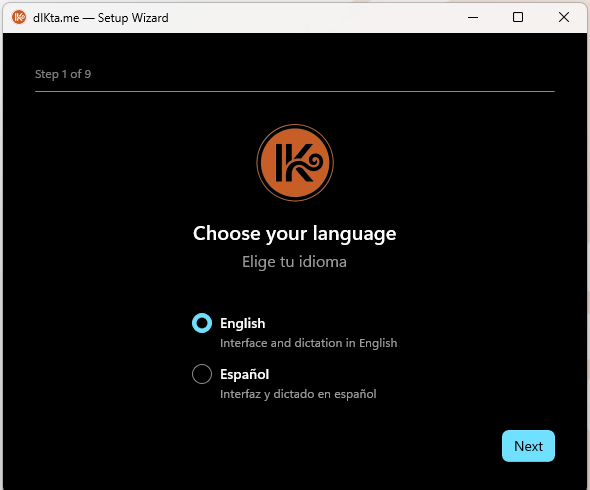
Paso 1 — Idioma
Elige Inglés o Español para la interfaz.
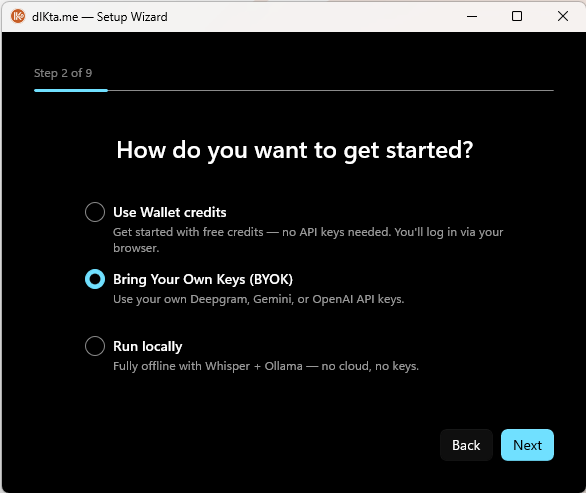
Paso 2 — Elige tu modo
| Modo | Qué hace | Requiere |
|---|---|---|
| Wallet | Dictado en la nube con créditos dIKta.me. Solo inicia sesión — sin claves API. | Cuenta gratuita |
| API Key (BYOK) | Usa tus propias claves de Deepgram, Gemini, Anthropic y/u OpenAI. Las peticiones van directo a cada proveedor. | Power License |
| Local | Totalmente sin conexión con Whisper + Ollama + Kokoro en tu equipo. | Power License |
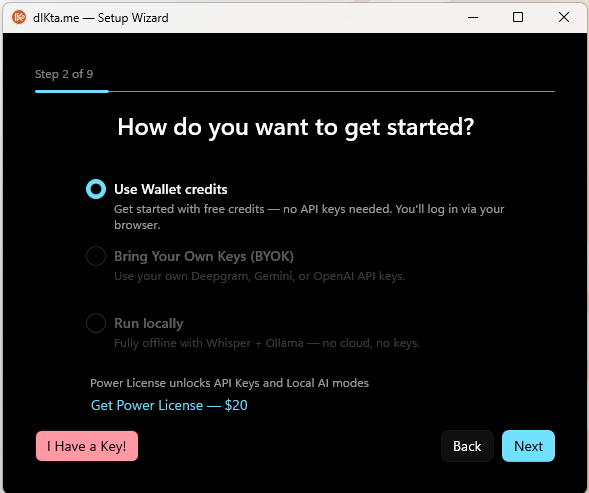
Wallet es la forma más rápida de empezar. El asistente abrirá una pestaña del navegador para iniciar sesión, y listo.
BYOK y Local requieren una Power License. Si aún no tienes una, haz clic en "I Have a Key!" para saltar a la pantalla de activación, o continúa con Wallet.
¿Ya tienes Power License? Mira el selector de modo desbloqueado
Una vez activada una Power License válida, las tres opciones quedan disponibles:
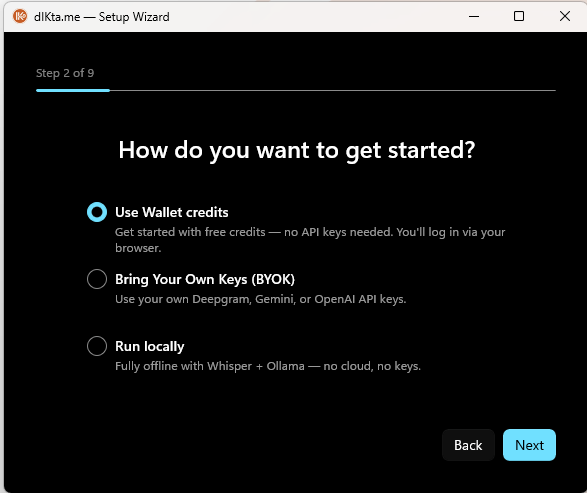
Elige BYOK para usar tus propias claves API:
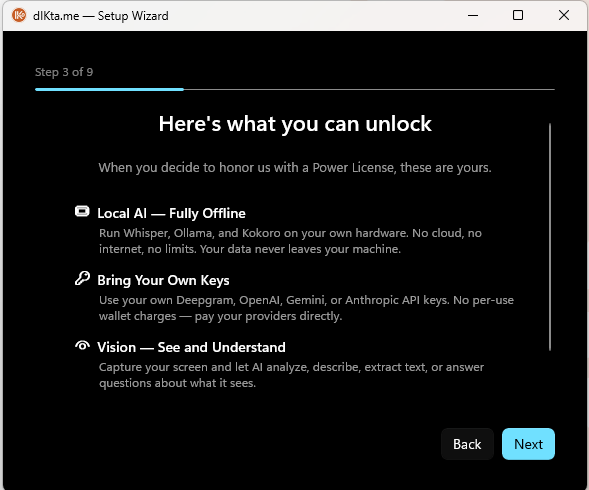
Paso 3 — Vista previa de Funciones (ruta Wallet)
Si elegiste Wallet, el asistente muestra qué desbloquearía una Power License — IA Local, BYOK y Visión:
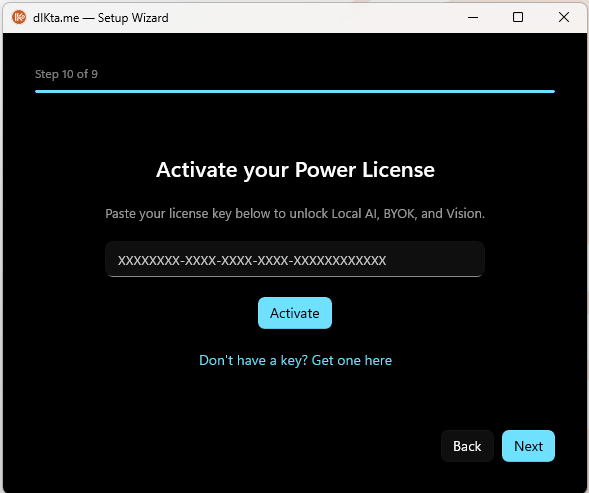
Desvío de Activación (opcional)
Pulsar "I Have a Key!" en cualquier momento abre la pantalla de activación de licencia. Pega tu clave y continúa.
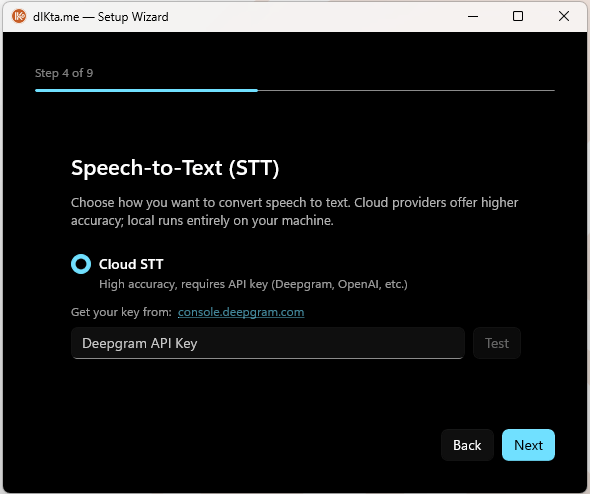
Paso 4 — Reconocimiento de Voz (STT)
Elige un proveedor en la nube (Deepgram) o un motor local (Whisper). Para la nube, introduce tu API key en línea y pruébala.
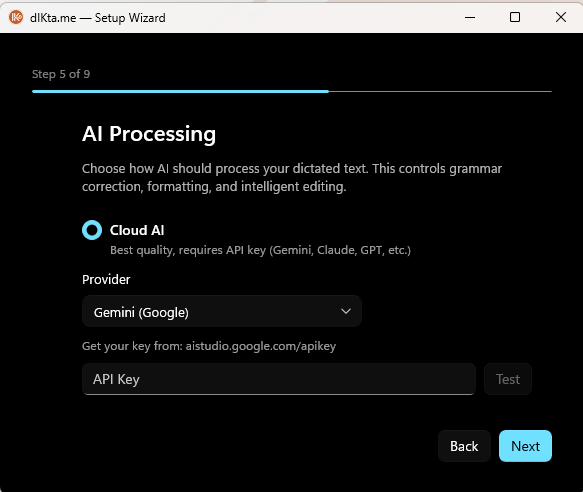
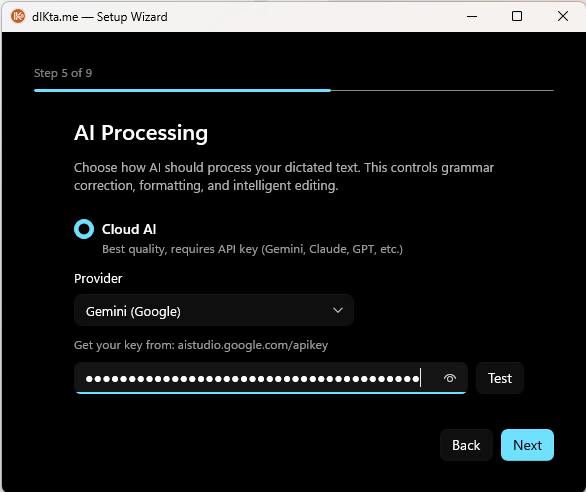
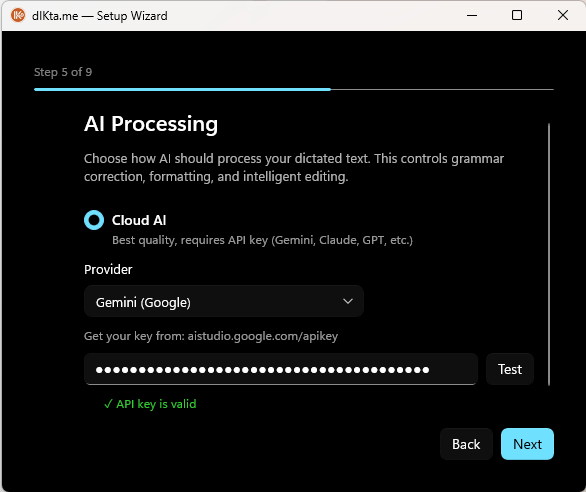
Paso 5 — Procesamiento de IA (LLM)
Elige un LLM en la nube (Gemini, Claude, GPT, OpenRouter) o local (Ollama). Prueba tu clave antes de avanzar.
Ver el progreso del paso LLM al probar la clave
Estado vacío:
Clave pegada:
Validada (marca verde):
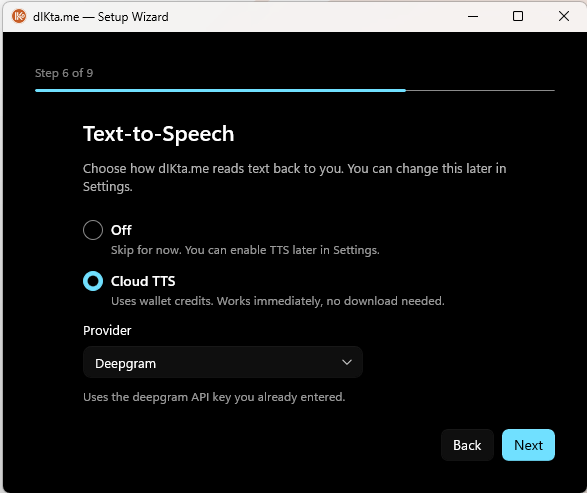
Paso 6 — Texto a Voz (TTS)
Opcional. Off, Nube (Deepgram, OpenAI, Gemini, Inworld) o Local (Kokoro).
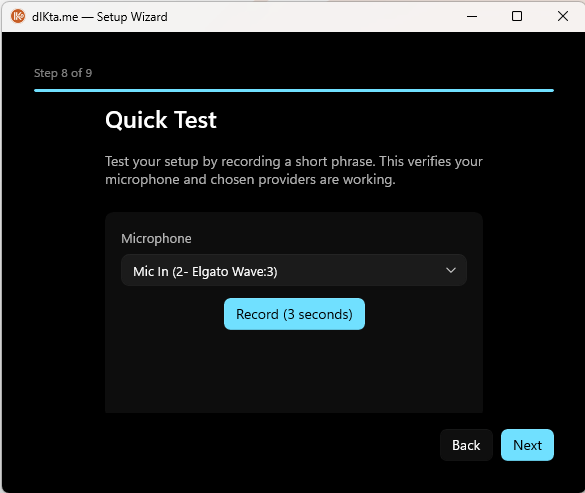
Paso 8 — Prueba Rápida
Graba una frase corta para confirmar que tu micrófono y proveedores funcionan de extremo a extremo.
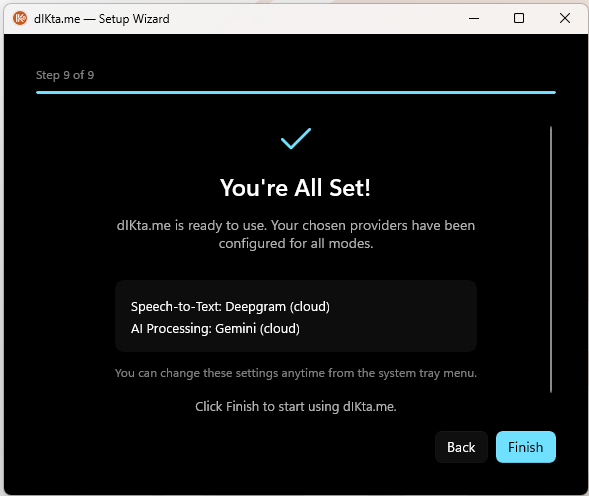
Paso 9 — ¡Listo!
Un resumen de los proveedores que elegiste. Haz clic en Finish para salir del asistente y empezar a dictar.
3. Cómo usarlo
dIKta.me vive discretamente en tu bandeja del sistema.
- Para Dictar: Haz clic en cualquier lugar donde puedas escribir y pulsa
Ctrl+Alt+D. Mantén pulsado mientras hablas, luego suelta — dIKta.me escribirá lo que dijiste. - Para Ajustar: Haz clic derecho en el icono de la bandeja o en el icono de engranaje del Panel de Control para abrir los Ajustes.
- Para Cambiar de Modo: Haz clic en el toggle Nube/Local en el Panel de Control.
Siguiente: Voz recorre cada acción por voz en profundidad.