Ajustes de Audio
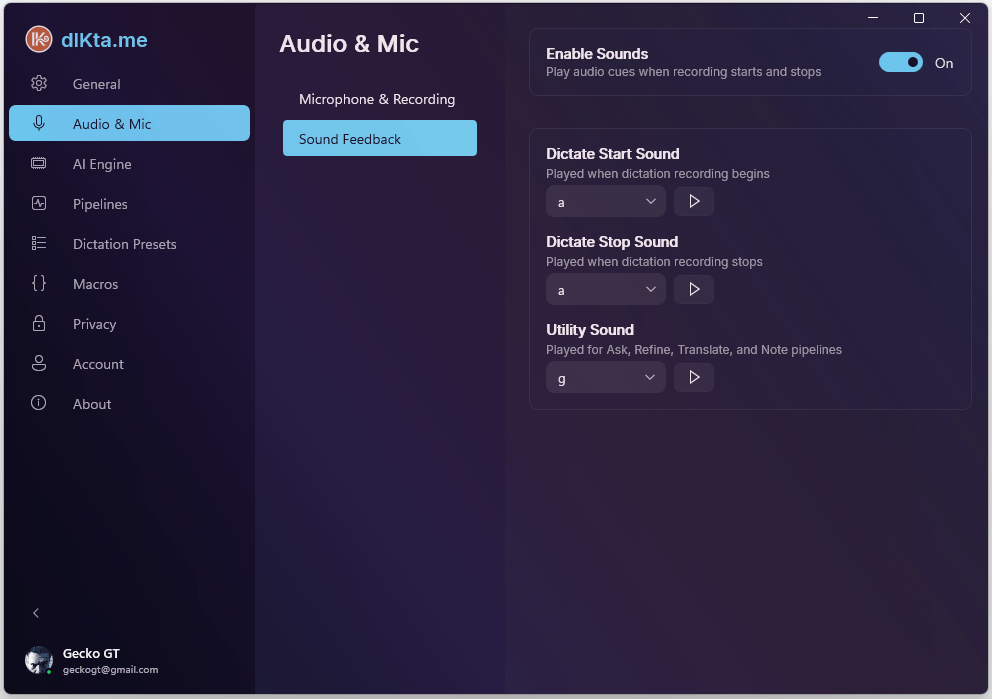
Sonidos de Feedback — inicio/fin de dictado y sonidos de pipelines
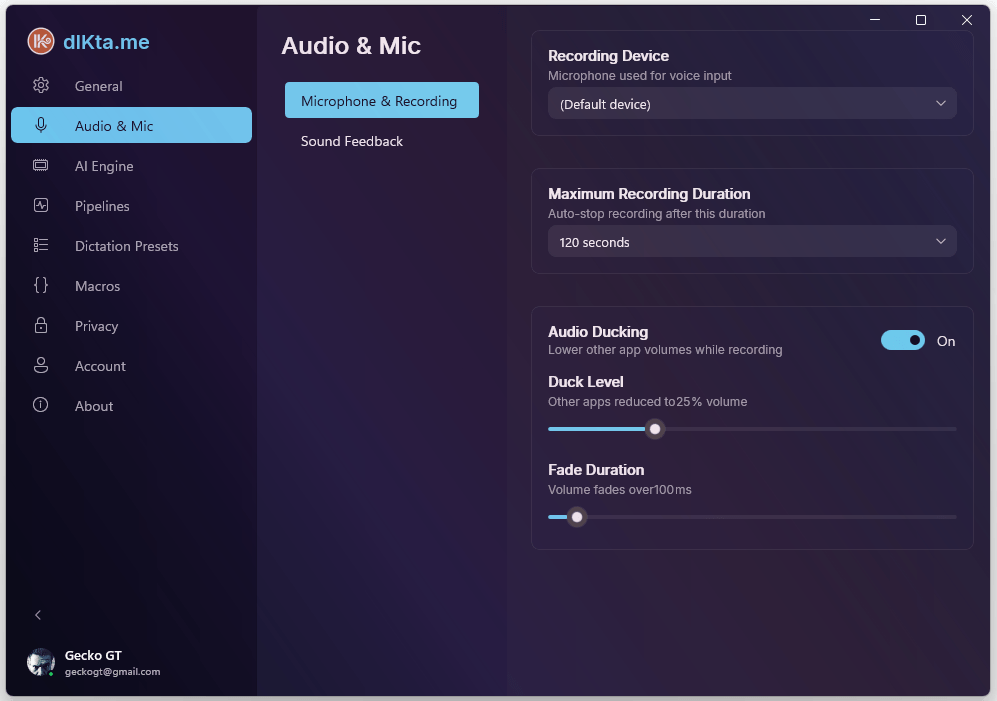
La pestaña de Audio configura cómo dIKta.me interactúa con tu micrófono y tus altavoces.
Selección de Micrófono
Por defecto, dIKta.me escucha a través de tu dispositivo de grabación principal y predeterminado de Windows (por ejemplo, tus auriculares, cámara web o micrófono integrado de la computadora portátil).
Si tienes varios micrófonos conectados a tu computadora y deseas dedicar uno específicamente a dIKta.me, puedes configurarlo explícitamente aquí mediante el menú desplegable Select Microphone (Seleccionar Micrófono).
TIP
**Problemas de Control Exclusivo**: Si usas software como Zoom u OBS Studio con "Control Exclusivo" habilitado en el mismo micrófono que estás intentando usar con dIKta.me, es posible que experimentes fallos en la grabación. Intenta cambiar el dispositivo de entrada o asegurarte de que tus otras aplicaciones no acaparen el acceso exclusivo.
**Problemas de Control Exclusivo**: Si usas software como Zoom u OBS Studio con "Control Exclusivo" habilitado en el mismo micrófono que estás intentando usar con dIKta.me, es posible que experimentes fallos en la grabación. Intenta cambiar el dispositivo de entrada o asegurarte de que tus otras aplicaciones no acaparen el acceso exclusivo.
Opciones de Audio
- Max Recording Duration (Duración Máxima de Grabación): Establece un límite estricto de corte para una sola sesión de grabación (en segundos). Por defecto, esto es 600s (10 minutos). Si accidentalmente dejas presionada tu tecla de Dictado, dIKta.me cortará automáticamente la grabación y comenzará el procesamiento después de este umbral para evitar crear archivos de audio anormales o inflar tus facturas de API.
- Audio Ducking (Atenuación de Audio): Una función avanzada que baja automáticamente el volumen de otras aplicaciones (como Spotify, YouTube o videojuegos) cada vez que empiezas a dictar. Cuando la grabación termina, tu volumen se restaura al instante.
- Attenuation Level (Nivel de Atenuación): Determina qué tan drásticamente se reducen los otros sonidos. El 100% significa que el otro audio se silencia por completo, mientras que el 20% significa que la música de fondo solo se atenuará levemente.
- Fade Duration (Duración de Desvanecimiento): En lugar de cortar abruptamente tu música de fondo, dIKta.me puede bajar suavemente el volumen cuando empiezas a hablar y volver a subirlo suavemente cuando terminas. Puedes personalizar la duración exacta de esta transición de fundido cruzado para una experiencia de audio perfecta.
- Mute Detection (Detección de Silencio): dIKta.me detecta inteligentemente si tu micrófono está silenciado por hardware (mute). Si intentas dictar mientras estás silenciado, la aplicación te alertará al instante, evitando que desperdicies tu aliento.