Hotkeys Settings
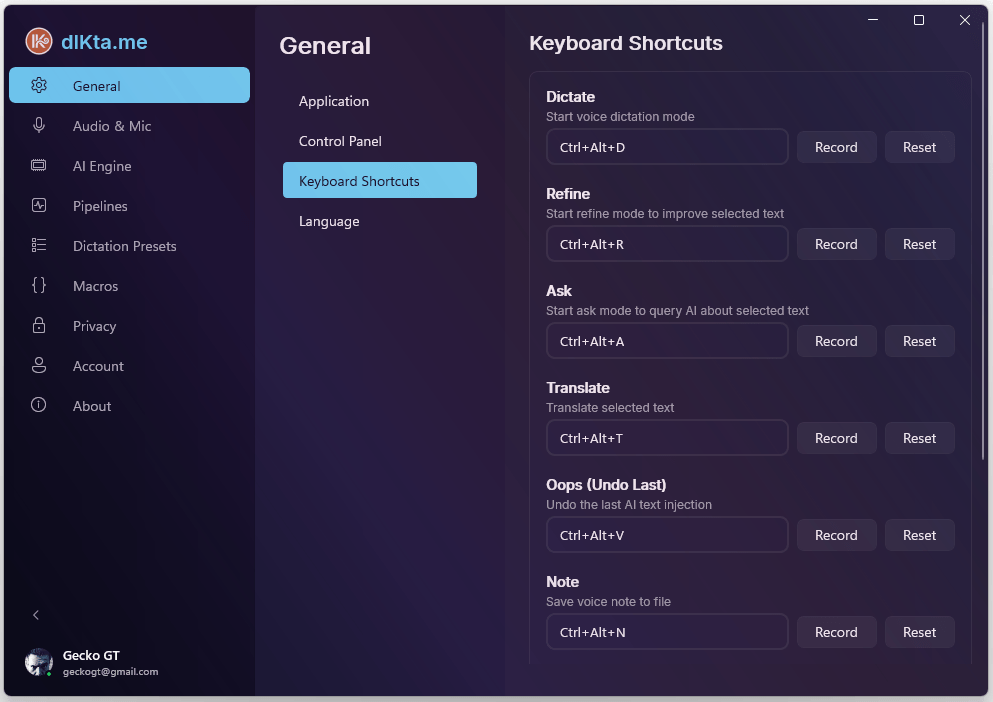
The Hotkeys tab allows you to remap every pipeline to match your existing workflow and avoid conflicts with other powerful Desktop applications.
By default, every action involves a three-key combination to ensure you don't inadvertently trigger an injection while pressing a generic key.
Creating effective global shortcuts
Because dIKta.me is designed to sit invisibly in the background, its hotkeys are Global Windows Hooks. This means they work regardless of what application you currently have open.
It is critical you select keys that you do not normally use.
If you remap your Dictation hotkey to a single letter like D, your computer will record your voice the moment you press that letter and stop whenever you release it—effectively making you unable to type D correctly anywhere else.
- Supported Modifiers: We recommend mapping them directly to
Ctrl,Alt,Shift, orWincombinations (e.g.,Ctrl + Shift + DorCtrl + Alt + W). - Recording a Hotkey: Click directly inside the textbox of the shortcut you want to change, press your desired keyboard combination in full, and click Save.
Core Pipelines
-
Dictate (
Ctrl + Alt + D): Starts the primary Dictation pipeline. This involves STT transcription, LLM processing formatted by the active Mode, and injecting the final polished format at your cursor position. -
Refine (
Ctrl + Alt + R): Edits existing selected text with STT Voice Instructions without typing a single letter. Can alternatively execute Autopilot mode on selected text if Voice Instructions are disabled within theGeneraltab. -
Ask (
Ctrl + Alt + A): Processes brief STT queries (e.g. "What is the capital of Spain?") without typing into your active window. Results are silently copied to your clipboard or sent natively as a Windows Notification prompt. -
Translate (
Ctrl + Alt + T): Automatically detects the spoken input language, transcribes it, uses LLM translation to natively convert it to your targeted destination language, and natively injects the results. -
Note (
Ctrl + Alt + N): Silently processes your recorded thought and appends it iteratively with a Timestamp footer to a custom Notepad/Markdown file on your computer without ever touching the primary Dictation workspace. -
Oops (
Ctrl + Alt + V): Remembers the literal last payload of text generated by the STT/LLM pipelines. Re-pastes it successfully at a corrected cursor location using volatile Windows Clipboard history without making you repeat dictation.
Overlay Windows
- Quick Chat Window (
Ctrl + Alt + C): Instead of processing things directly under your cursor, this manually summons the standalone, floating LLM chat interface enabling extensive multi-turn conversations featuring text history, models, system prompt editors, and custom clipboard-payload interactions.