Ajustes Generales
La pestaña General en los ajustes del Panel de Control de dIKta.me alberga las configuraciones principales de la aplicación, el idioma de la interfaz de usuario y el comportamiento base de integración.
Temas
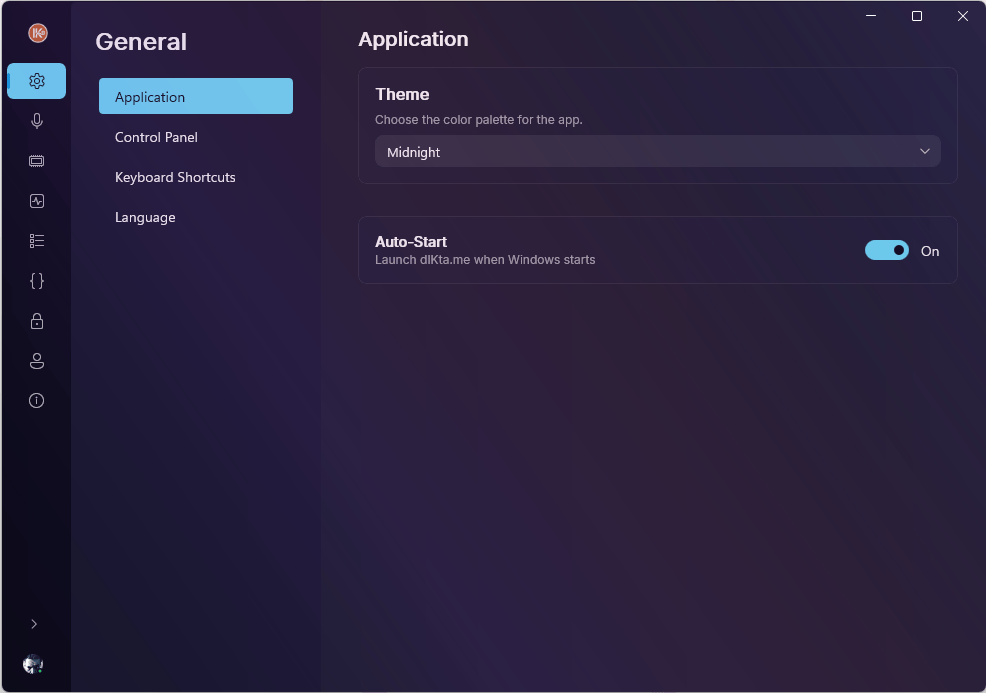
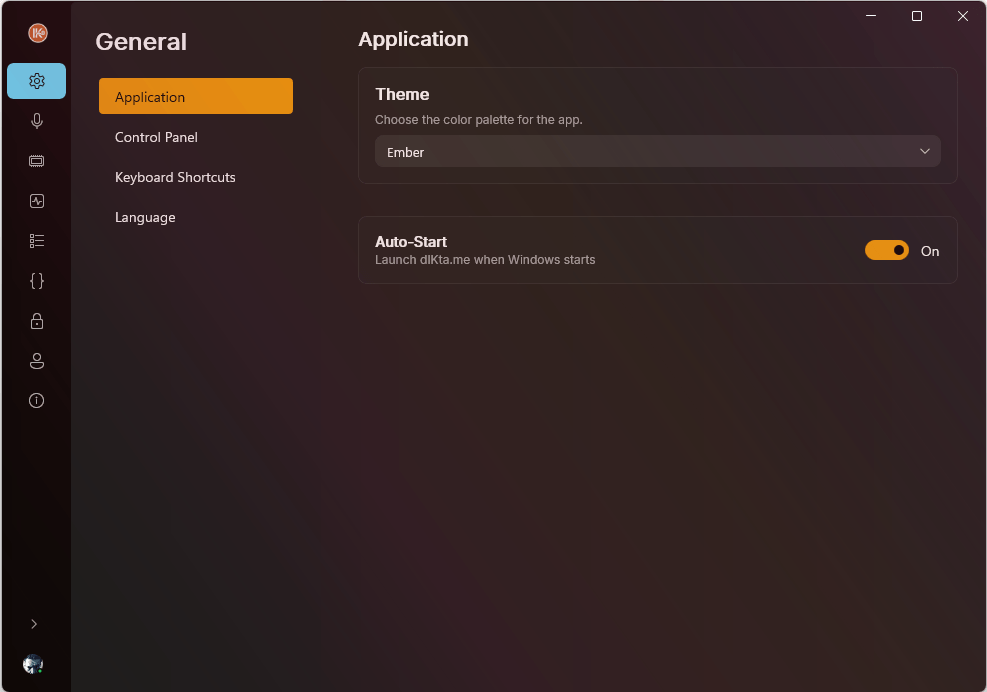
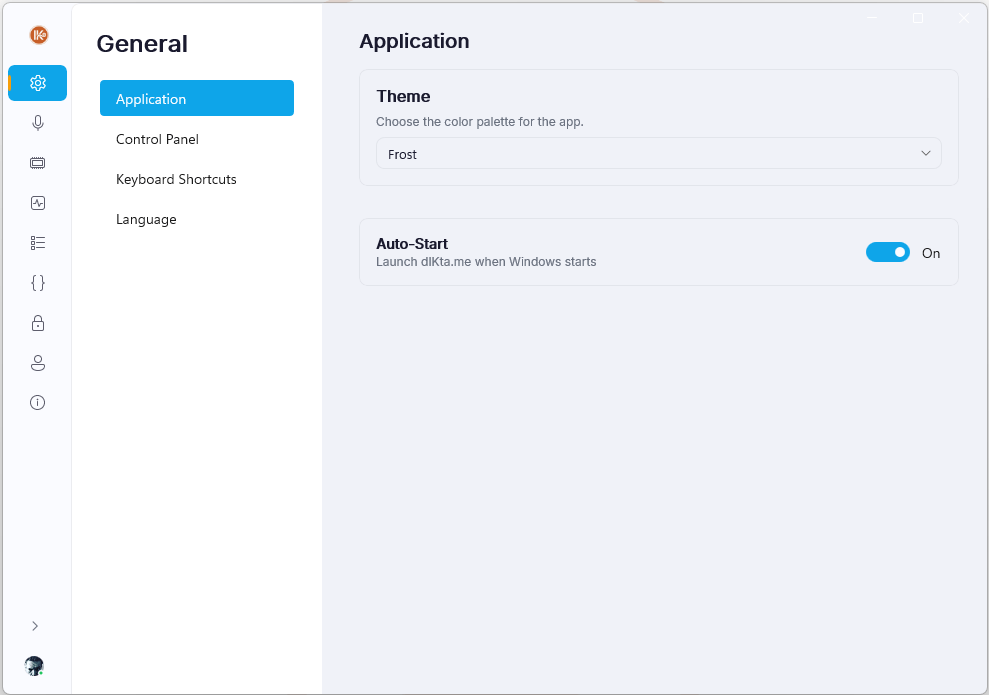
dIKta.me incluye tres temas. Arrastra el deslizador para comparar:
Midnight
Ember
Midnight
Frost
El selector de tema está en General → Aplicación → Tema.
Comportamiento
- Launch on Windows Startup (Iniciar al arrancar Windows): Cuando está marcado (Autostart), dIKta.me se iniciará automáticamente y se minimizará en la Bandeja del Sistema cada vez que enciendas tu computadora.
- Play Feedback Sounds (Reproducir Sonidos de Retroalimentación): Habilita sutiles indicaciones de audio (como clics suaves o campanillas) cuando inicias o detienes una grabación, permitiéndote saber que el micrófono está activo sin tener que mirar la ventana del Panel de Control.
Ajustes de Inyección
Estas opciones personalizan cómo aterriza el texto en tu aplicación de destino.
- Append key after injection (Enviar tecla tras inyección): Te permite simular la presión de una tecla del teclado inmediatamente después de que el texto aterriza.
None (Ninguno): El dictado se detiene exactamente al final del texto.Enter (Intro): Envía automáticamente el texto (perfecto para aplicaciones de chat como Slack, Teams o Discord).Tab (Tabulador): Tabula automáticamente al siguiente campo (perfecto para rellenar hojas de cálculo o formularios web).
Anulaciones de Canalización (Pipeline Overrides)
- Refine: Use Voice Instruction Mode (Refinar: Usar Modo Instrucción de Voz): Cambia cómo opera la tecla de Refinar (
Ctrl+Alt+R).- Marcado: Debes presionar la tecla, decir una instrucción, y luego soltarla (Modo Instrucción de Voz).
- Desmarcado: Presionar la tecla procesa instantáneamente el texto resaltado usando la instrucción del sistema sin grabar audio (Modo Piloto Automático).
- Ask Output Mode (Modo de Salida de Preguntar): Determina cómo la canalización Preguntar (Ask) entrega las respuestas.
Clipboard and Toast (Portapapeles y Notificación): Las respuestas se copian silenciosamente y se muestran en una notificación de Windows.Clipboard Only (Solo Portapapeles): Las respuestas se copian solo al portapapeles.Toast Only (Solo Notificación): Las respuestas se muestran solo a través de una notificación.Inject Only (Solo Inyectar): Las respuestas se pegan directamente sobre tu cursor al igual que un dictado.
- Global Raw Mode (Modo Crudo Global): Obliga a todas las canalizaciones de dictado a omitir el procesamiento de Inteligencia Artificial y simplemente genera lo que el proveedor de Voz a Texto haya reconocido de forma cruda. Útil si deseas una transcripción completamente literal y en crudo con cero formato.
- Enable Streaming Dictation (Habilitar Dictado por Transmisión): Activa el dictado en tiempo real utilizando un WebSocket si tu proveedor de STT (Deepgram) lo soporta. Reemplaza la grabación del "Modo por Lotes" (Batch Mode). Nota: El modo de Transmisión omite las instrucciones del sistema del LLM y siempre genera texto no procesado por inteligencia artificial.
Propiedades de Idioma
- UI Language (Idioma de la Interfaz): Controla el idioma de visualización de los componentes de la interfaz de dIKta.me, como los menús de ajustes y los botones del Panel de Control (ej., Inglés, Español). Cambiar esto requiere reiniciar la aplicación.
- Interaction Language (Idioma de Interacción): Controla el idioma hablado predeterminado enviado a las canalizaciones de procesamiento de IA (ej.,
en,es,fr). Ayuda al motor de STT a agilizar y priorizar tu lengua materna.