Web Dashboard
The Web Dashboard at dikta.me/en/dashboard is where you manage your account outside the Windows app — buy credits, check your license, update your profile, and control newsletter preferences. Any browser, any device, any OS.
The Windows app's [Account settings](settings/account.md) shows the same license tier and credit balance locally. The dashboard is the **active** side of that relationship — it's where you actually change things.
Overview
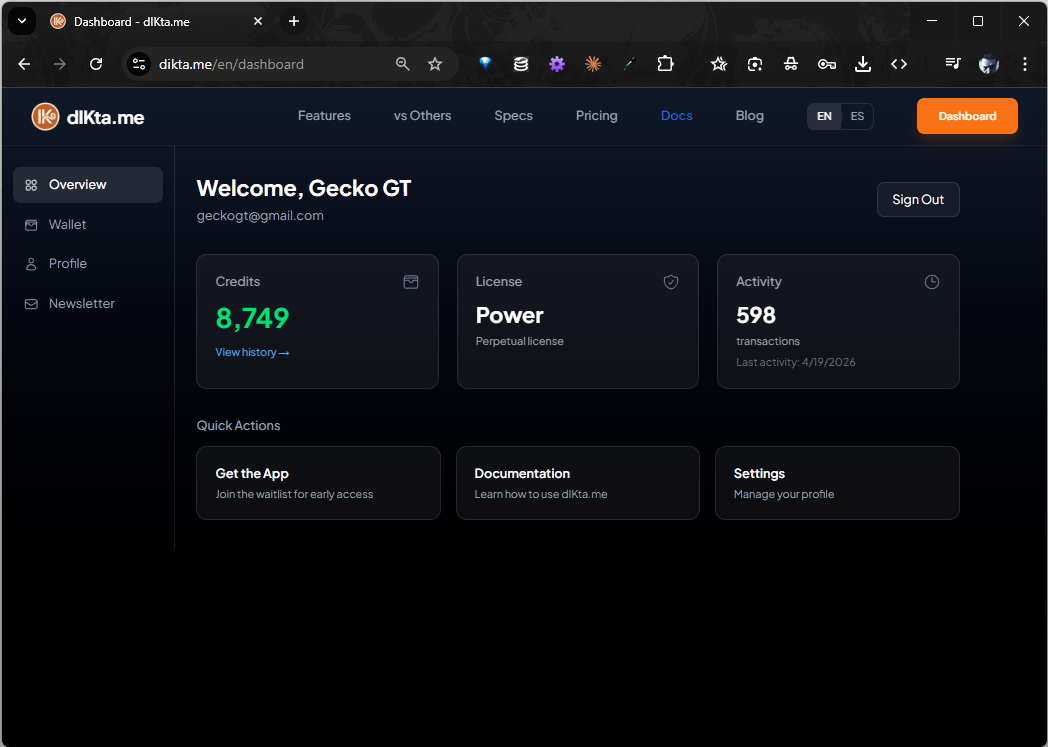
Sign in with the same account you linked in the app's setup wizard. The landing page shows three stat cards and a row of Quick Actions:
- Credits — your current wallet balance with a link to the full transaction history.
- License — your tier (Free, Power) and whether it's perpetual or time-limited.
- Activity — total transactions and the date of your last session.
Quick Actions shortcut to the waitlist page (Get the App), these docs (Documentation), and your Profile (Settings).
Wallet
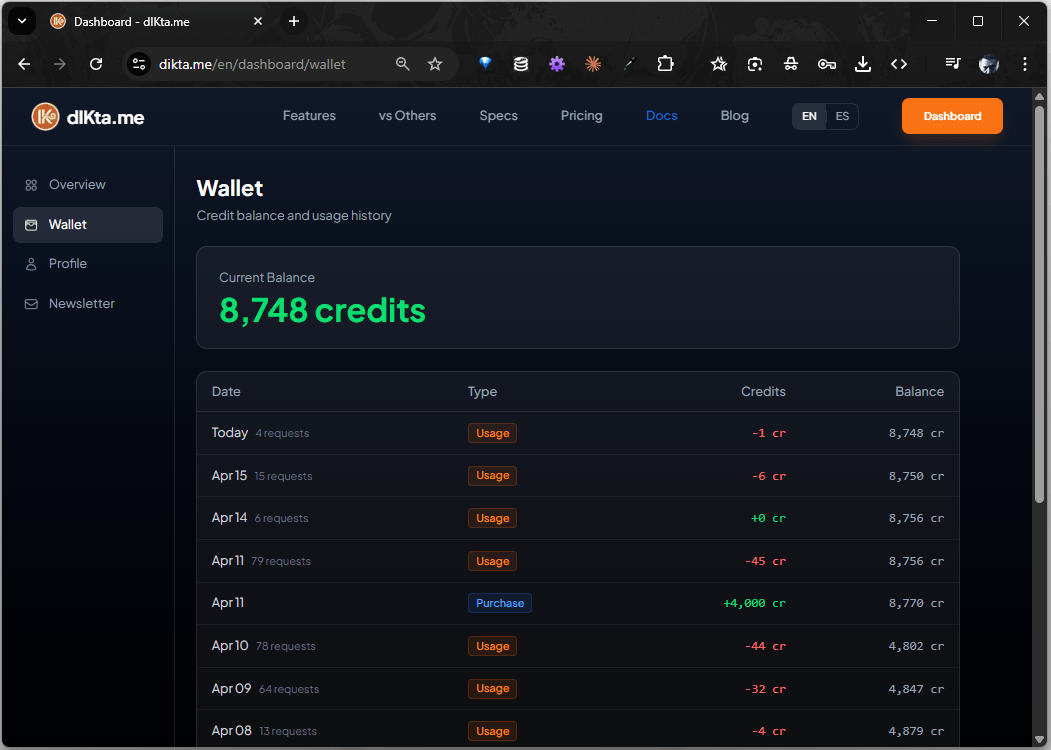
The Wallet panel shows your current credit balance and a full chronological history of every credit movement. Each row tags the type:
- Usage (red) — credits consumed by dictation, vision, or TTS pipelines.
- Purchase (green) — credits added by a top-up.
- Promo / Adjustment — credits granted manually or by promo code.
Rows also show how many requests were served that day. Click into a day to see the per-request breakdown.
Profile
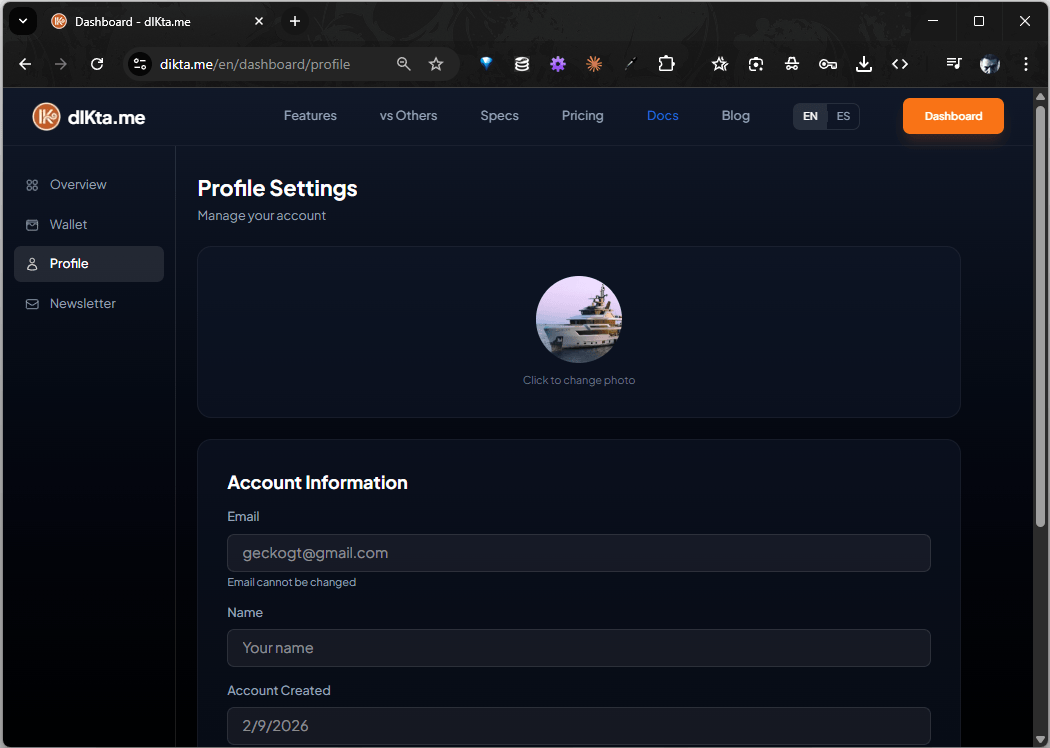
The Profile panel manages your identity:
- Avatar — click the circle to upload and crop a new photo. Syncs back to the Windows app on next launch.
- Email — read-only; tied to your account's sign-in provider. Contact support if you need to change it.
- Name — display name used in the app and in support tickets.
- Account Created — when you first signed up.
Newsletter
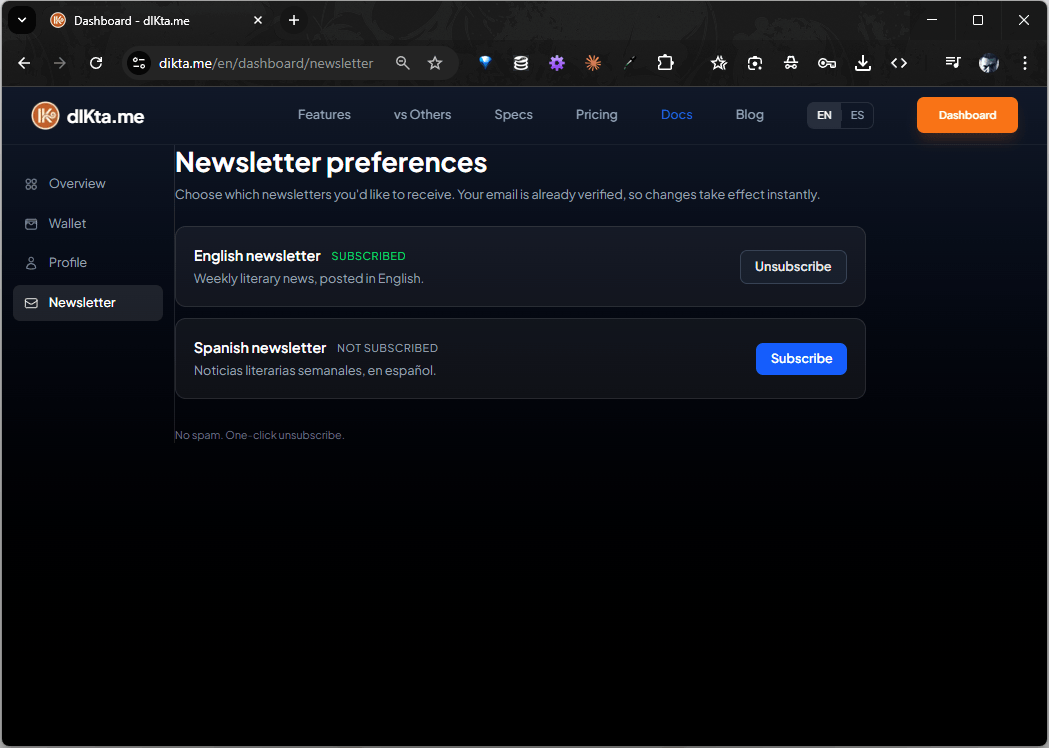
The Newsletter panel is a one-click opt-in/opt-out for each language-specific newsletter. Because your email is already verified by your account, every change takes effect instantly — no confirmation email needed.
- English newsletter — Weekly literary news, posted in English.
- Spanish newsletter — Noticias literarias semanales, en español.
You can be subscribed to both, one, or neither.
Signing out
The Sign Out button on the Overview page ends your browser session. It does not sign you out of the Windows app — those are independent sessions.
Related
- Account settings (in the app) — view credits and license locally
- Getting Started — how sign-in works during first-run setup